Building a form
Understanding the structure of a form helps you build better, more organized forms. A form in FlowGenie is organized hierarchically: forms contain sections, sections contain rows, and rows contain questions.
Form Structure
A form is made up of sections, which group related questions together. Each section can have a title and can be conditionally displayed based on form answers. Within each section, questions are organized into rows, allowing you to place multiple questions side-by-side.
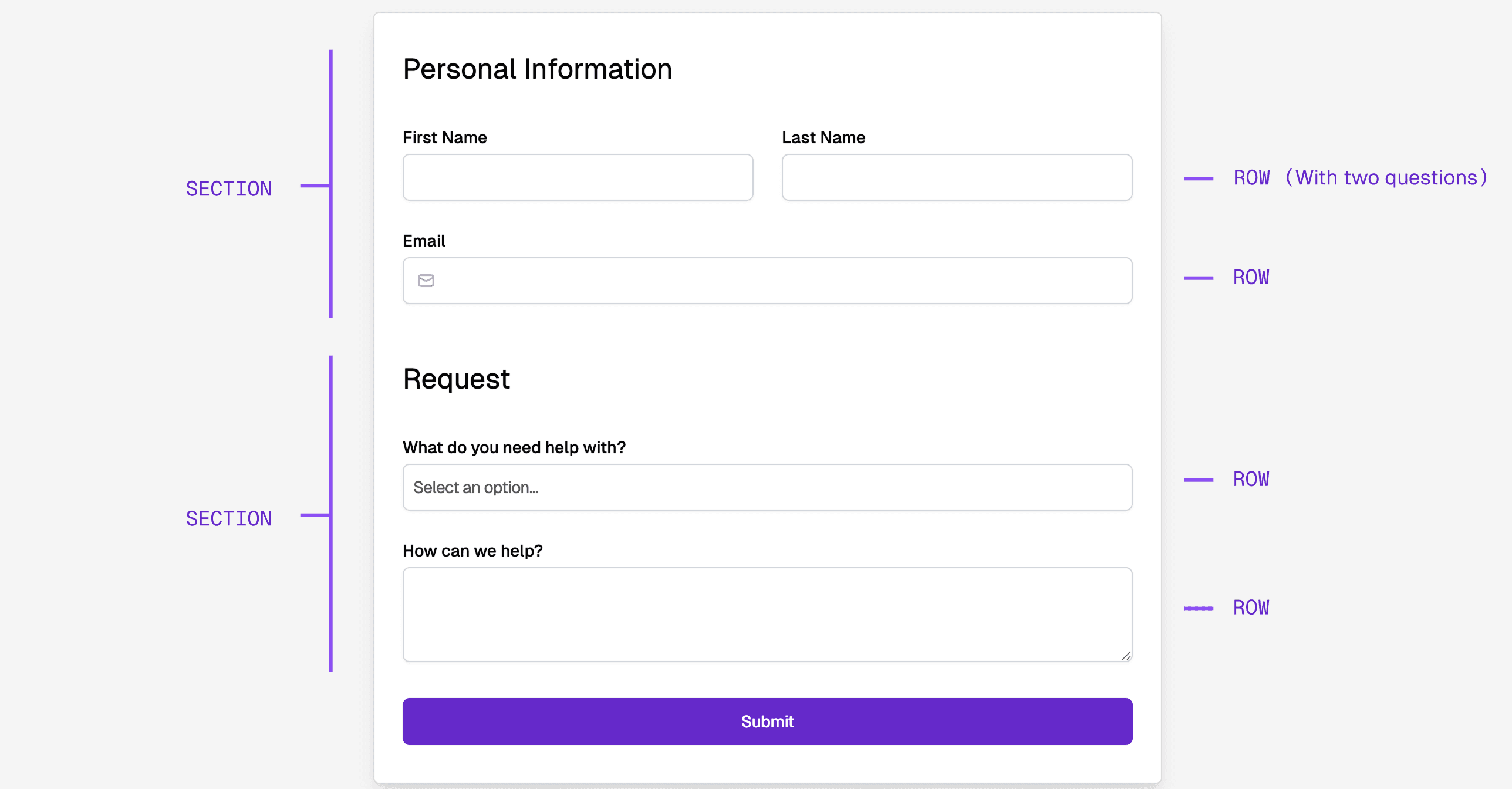
A row can contain as many questions as needed. Questions within a row will appear side-by-side, making it easy to create compact, organized layouts.
Sections
Sections allow you to group similar questions. You can create a section by dragging a question to the bottom or top of your form. Or, drag a Section question onto the form.
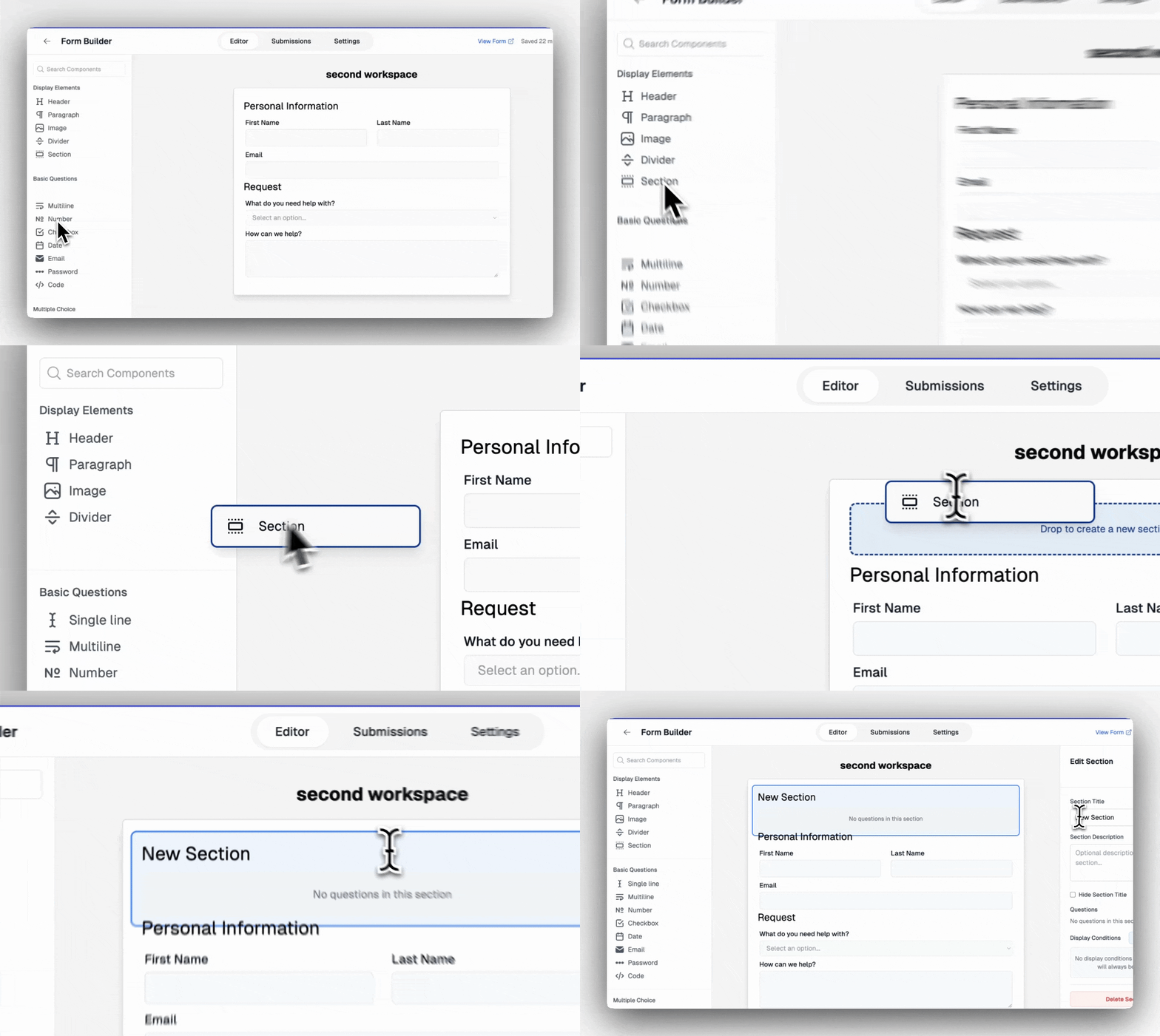
Select a section to edit it, which allows you to set a title a description. You can also give it display conditions, so you can hide an entire group of questions based on the answers to other questions.
Questions
You can add questions by dragging from the sidebar on the left onto anywhere on your form.
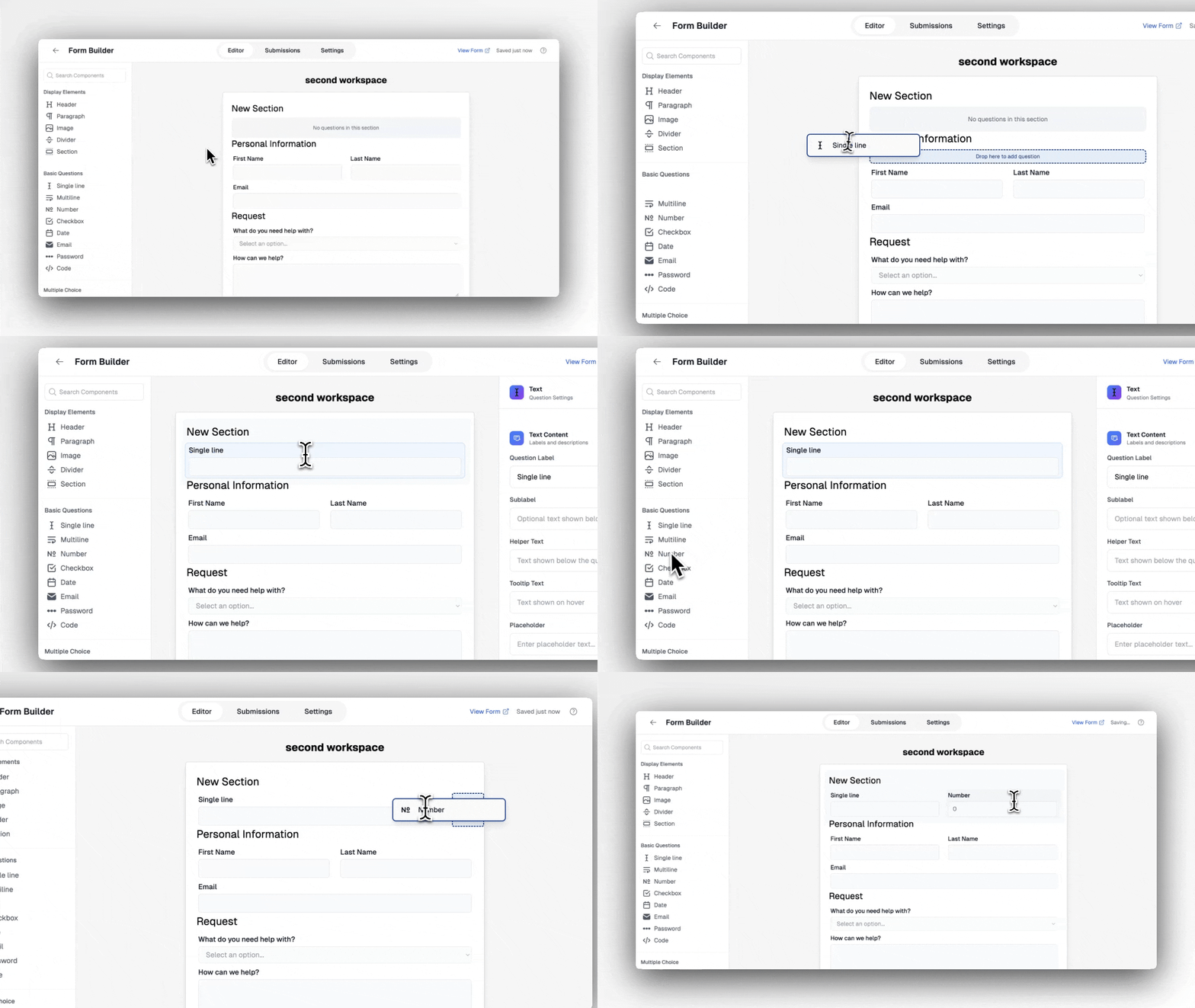
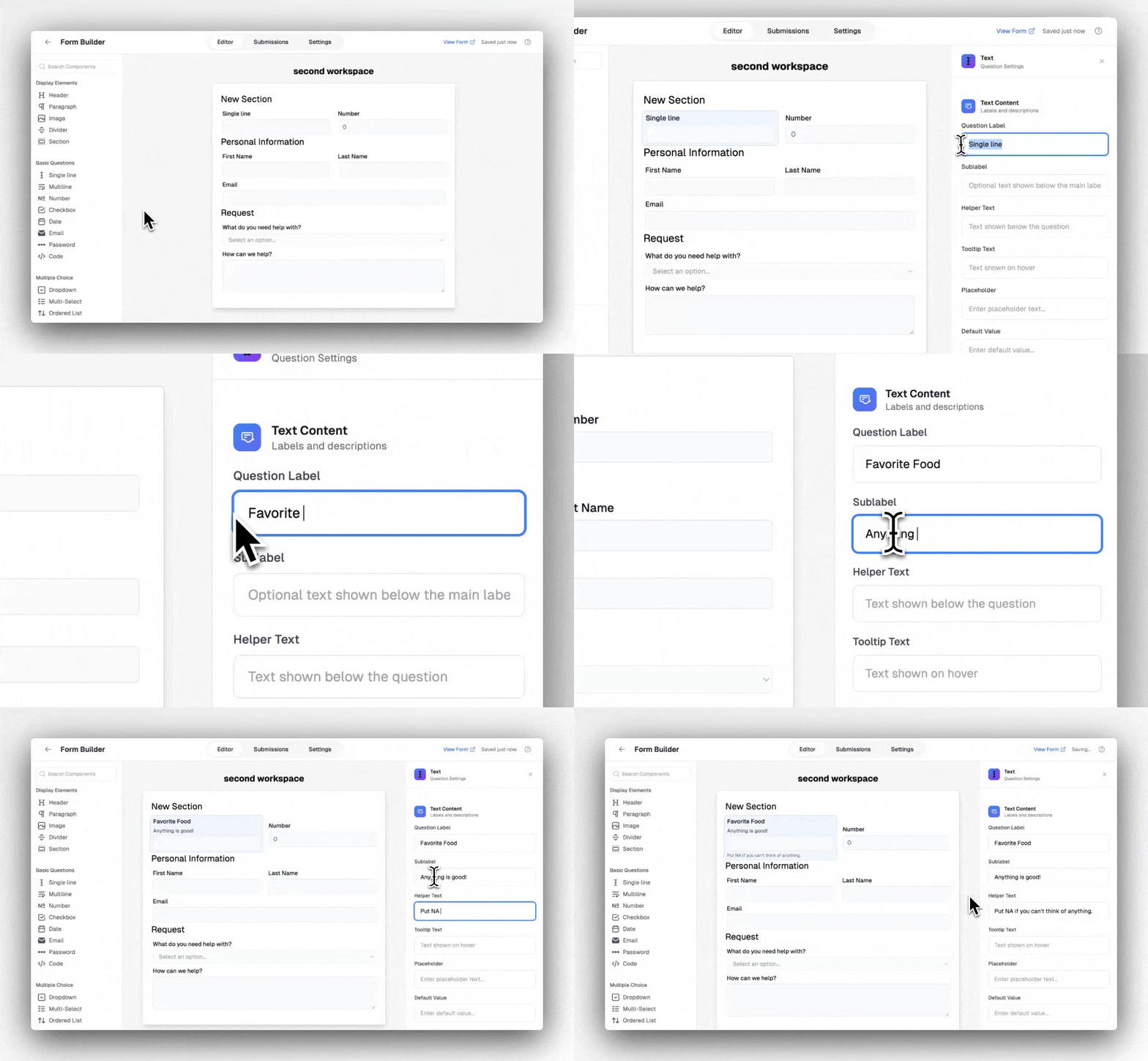
Or select an existing question to edit it. Different question types have different options that you can edit.
Managing your forms
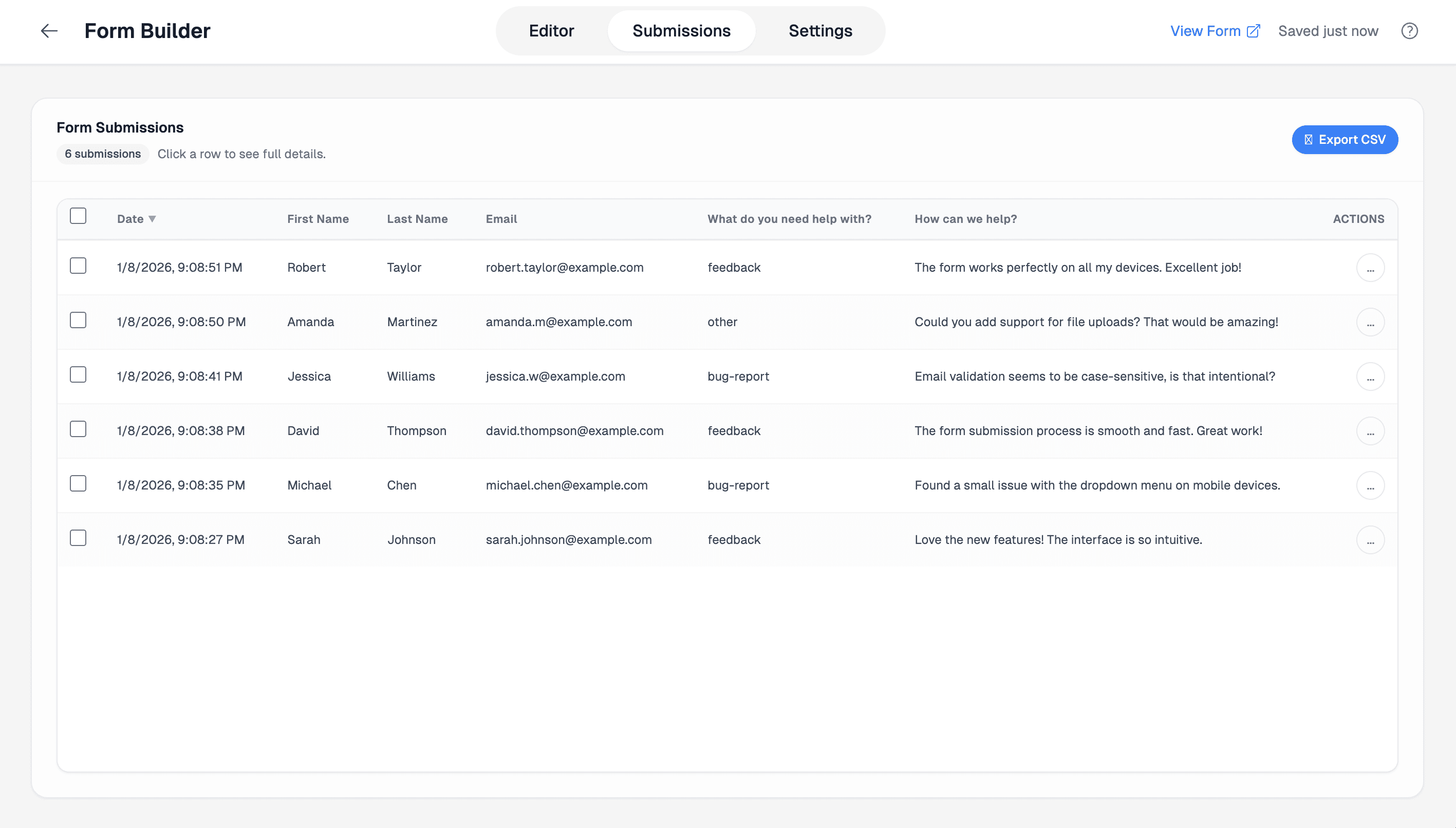
Submissions
Use the submission tab to view a list of submissions to your form. You can select a submission to view its full details. Or click the “Export CSV” button to analze your form data elsewhere.