Notifications
You can add email notifications under the settings tab. While you could do this with submit flows, for simple email notifications you can use this built-in feature.
Setting Up Email Notifications
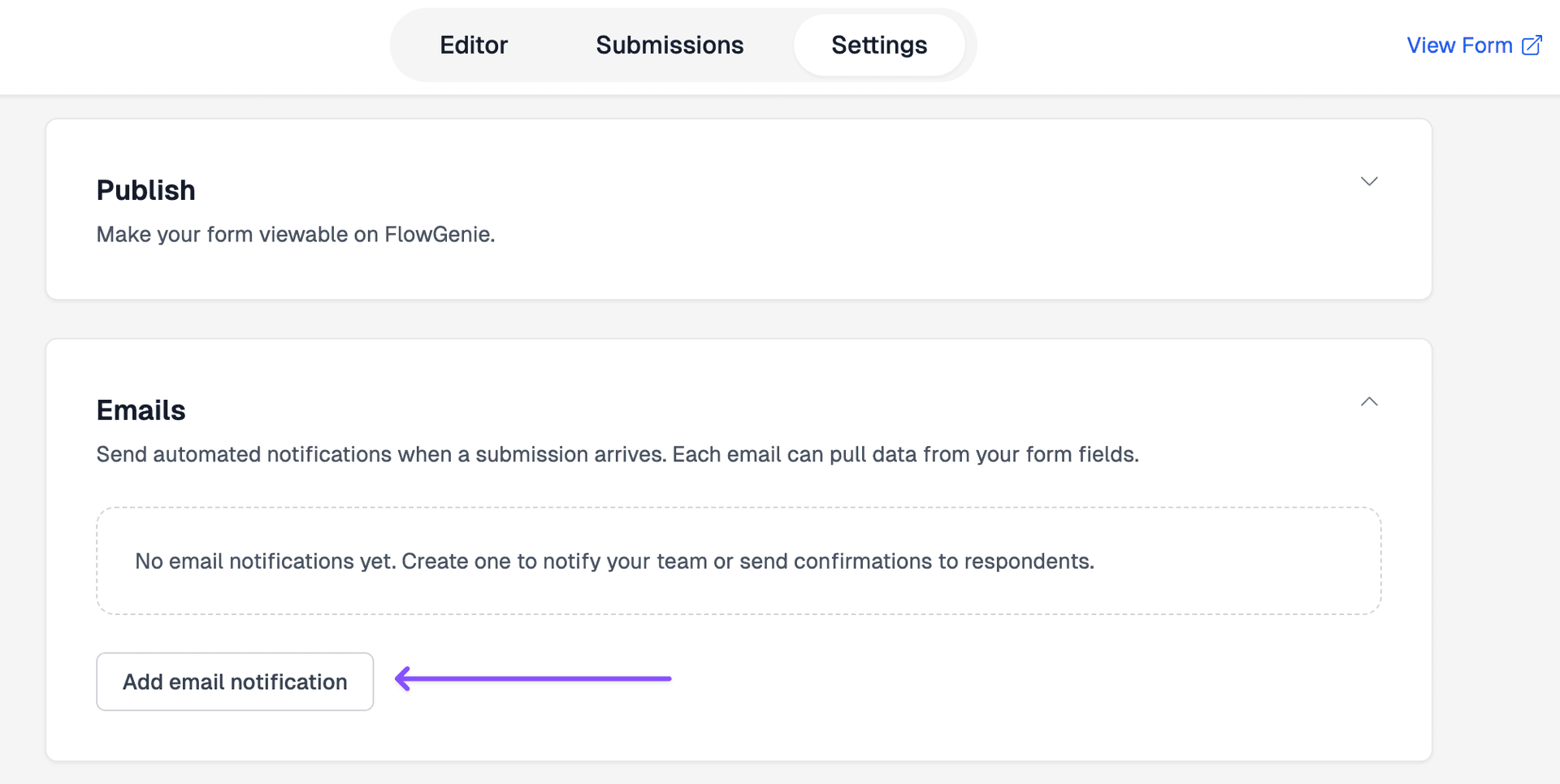
Accessing Email Settings
- Open your form in the form editor
- Navigate to the Settings tab
- Find the Emails card
- Click “Add email notification”
Configuring Email Notifications
Once you’ve added an email notification, you can configure:
Subject
Set the email subject line. You can reference form fields using {{question_key}} syntax:
Examples:
New submission from {{name}}Contact form submission - {{subject}}New order: {{order_number}}
Recipients
You can add multiple receipts by typing their email address in the recipients field and clicking “Add email”.
From Email Address
You can set a “from” email address from one of the form questions. This allows you to:
- Reply directly to the submitter
- Use the submitter’s email as the sender
- Customize the sender based on form answers
Select an email question from your form to use as the “from” address.
Email Content
Type out the email content in the body field. You can reference form fields by using {{question_key}} syntax:
Example:
Hi {{name}},

Thank you for your submission! We received the following information:

Name: {{name}}
Email: {{email}}
Message: {{message}}

We'll get back to you soon!

Best regards,
The Team
When to Use Email Notifications vs Submission Flows
Use Email Notifications When:
- You need simple email notifications
Use Submission Flows When:
- You need complex logic or conditional email sending
- You want to integrate with external services
- You need to process data before sending emails
- You require advanced automation beyond simple notifications
Checkout the Submission Flow documentation to learn more.
Multiple Email Notifications
You can add multiple email notifications to a single form. Each notification can have:
- Different recipients
- Different subjects
- Different content
- Different “from” addresses
This allows you to:
- Send notifications to different teams based on submission type
- Send different emails to different recipients
- Customize notifications for different scenarios
Next Steps
- Learn about submission flows for more advanced email handling
- Explore form structure to understand how to organize your forms
- Check out question types to see what fields you can reference